
How Braincove works
Braincove lets a parent set app restrictions, schedules, and an access goal. A child can move toward that goal through eligible learning-game sessions, approved homework, or confirmed chores. The Braincove child role on the child's iPhone applies or clears the local Apple Screen Time shield for the active rule. Family changes and reviews sync between connected devices.
Braincove in one minute
A parent chooses which apps or app categories are blocked, sets schedules, and decides how many points the child needs.
The child earns eligible points through 13 learning games, approved homework, or parent-confirmed chores. Reaching the active goal removes the Screen Time block applied by that rule.
Daily is a separate set of six browser puzzle games. It does not change app progress or access points.
Current parent and child app screens
Current development-build views from the parent and child roles on iPhone.
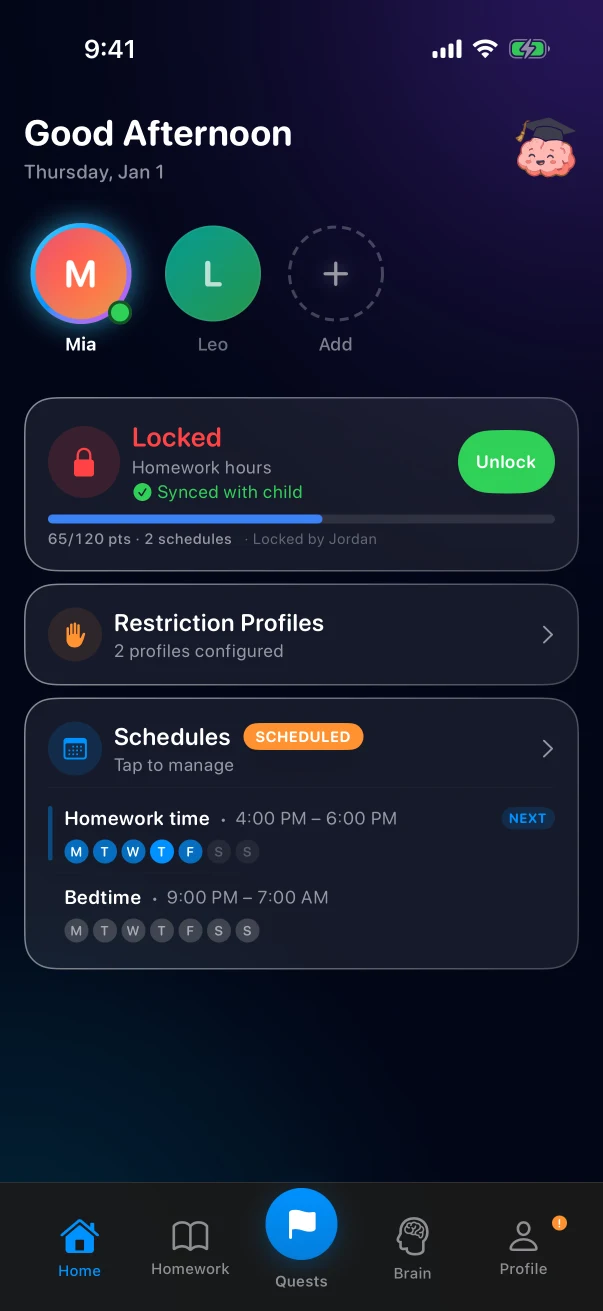
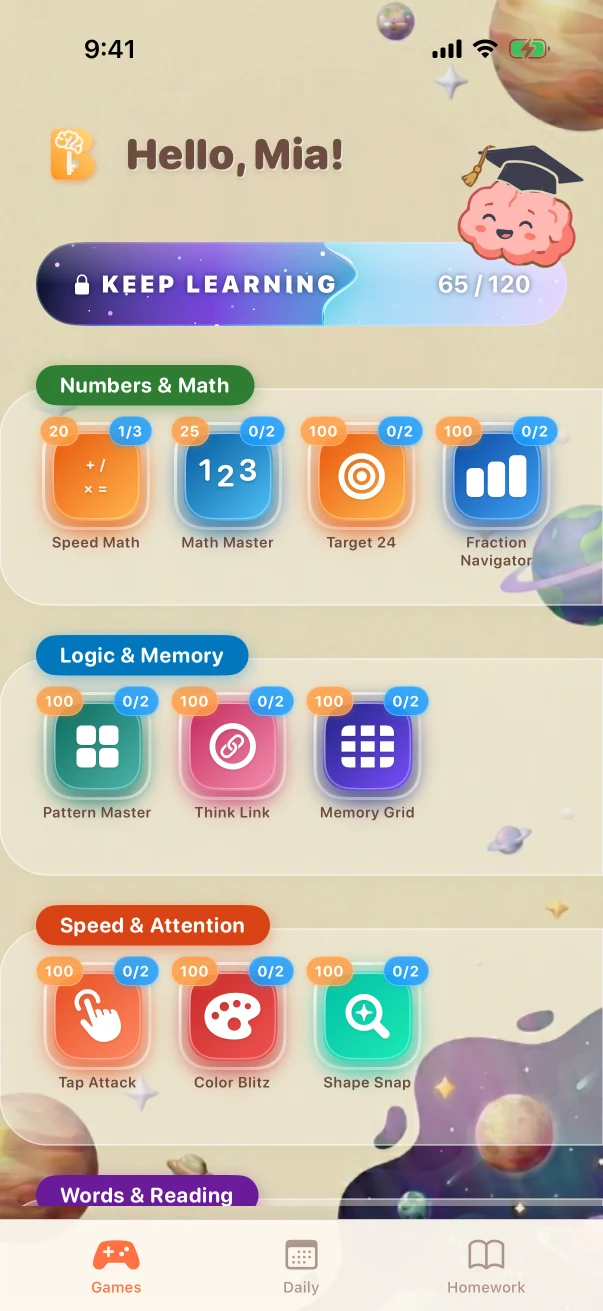
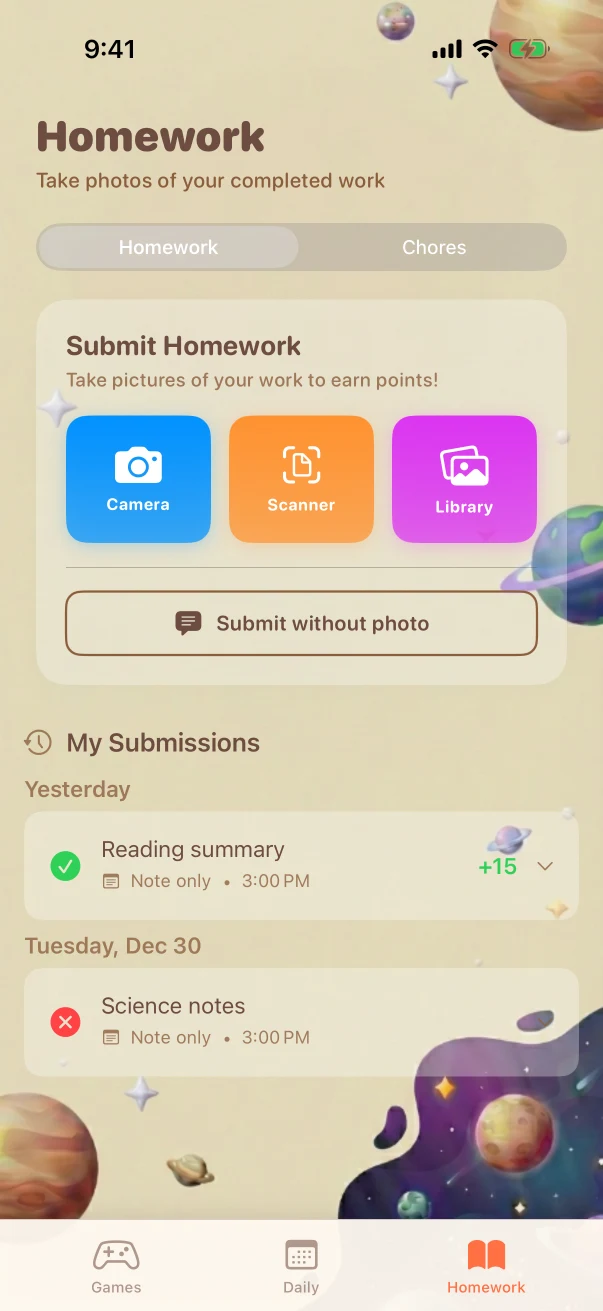
Parent devices, child devices, and setup
To manage a child remotely, use Braincove in the parent role on the adult's device and in the child role on the device being managed. Each installed app shows one role at a time. Pairing connects the app on the child device to one Braincove family. Apple Screen Time authorization is a separate protection step on the child device.
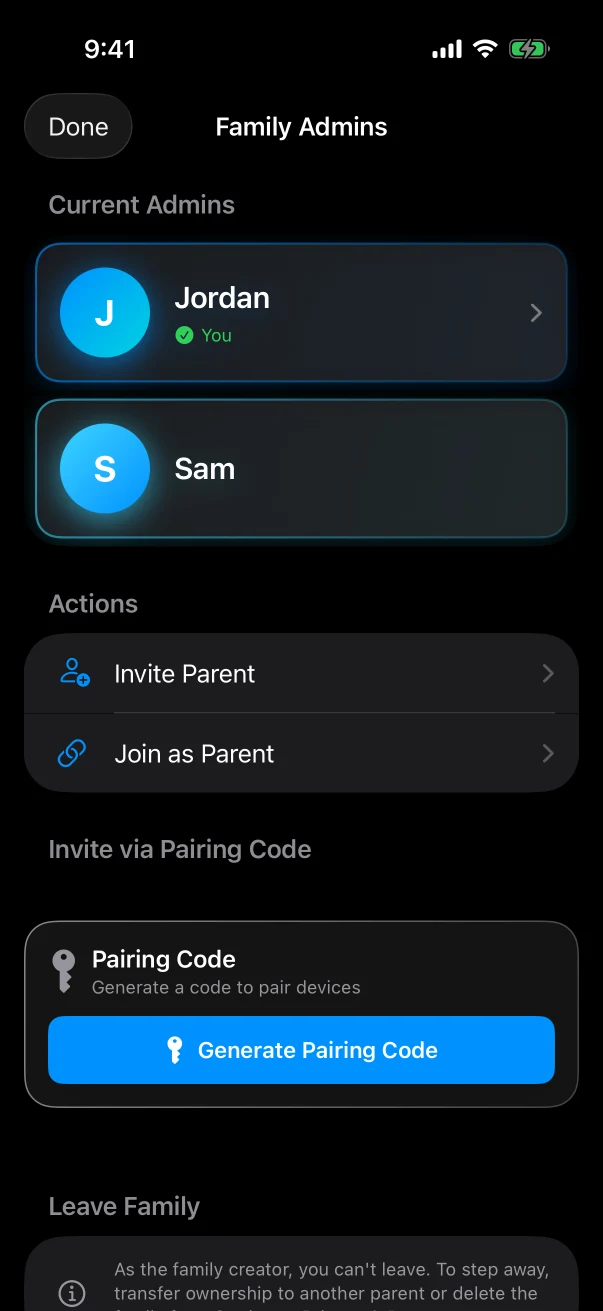
- A parent creates or joins a family and adds one or more child profiles. Braincove issues one six-character family code that is valid for 10 minutes.
- A signed-in parent or guardian can use that code to join the family. A child device can use the same code to list the family's child profiles, choose one, and pair to it.
- After pairing, the child device separately completes Apple Screen Time authorization.
- Apple ties each chosen app or exception to the iPhone where it was selected. Choose those apps on the child iPhone that will apply the block; another device cannot reuse that saved selection.
- The child device applies and removes Screen Time shields locally through Apple frameworks, including while Braincove is closed.
- Changes made by a parent travel through Braincove to the selected child device. Setup and new changes need internet; a change is not in force until that device receives it.
One family can include more than one parent and child
A family can include multiple parents and children, each with a separate profile.
Parents and guardians
Adults in the same family can view and change supported family data from their own devices after it syncs.
Child profiles
Each child keeps separate device state, points, homework submissions, chore submissions, parent decisions, and progress in every game.
Selection and delivery
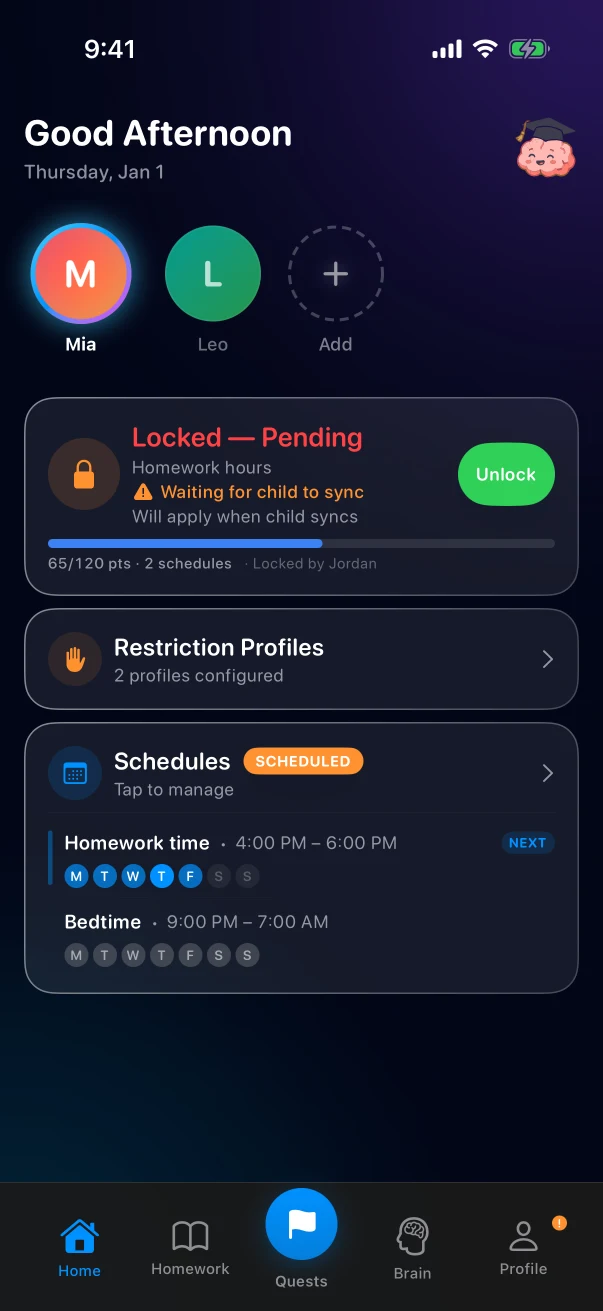
The highlighted profile controls which child the dashboard shows. A pending state means the selected child device has not yet confirmed the latest command.
One current family
The current app does not provide a multi-family switcher. A signed-in parent creates or joins the intended family.
When two parents save changes
Connected parent devices receive supported family changes after sync. If edits conflict, Braincove uses the newest saved change in the affected settings group. Lock state, schedules, restrictions, game settings, and schedule suspensions are separate groups, and a newer save can replace that whole group. This is not live co-editing or one all-settings-at-once merge.
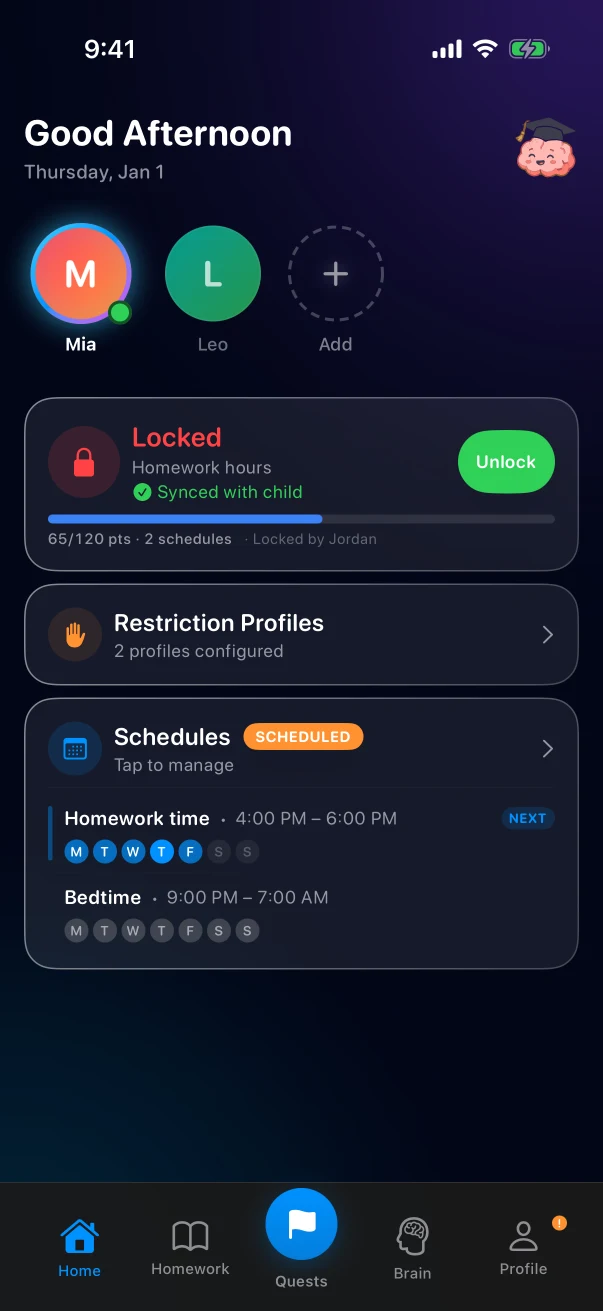
From an active rule to access
A point goal belongs to the restriction rule or schedule that is active now. Eligible game points, approved homework, and confirmed chores can move the same daily total toward that threshold.
- A parent configures a restriction, schedule, point goal, and whether eligible game practice may unlock the active rule.
- The child completes an eligible game session or submits homework or a parent-created chore.
- Eligible game points can count directly. Homework and chores wait for a parent decision.
- The current point total moves toward the active threshold.
- At the threshold, the child device clears the Screen Time shield applied by the active rule. The parent sees the updated state after the devices connect and sync.
- The parent can review progress and lock, unlock, pause, or change the rule.
Goal reached
Braincove clears the Screen Time shield applied by the active rule. Points are not spent. When a schedule supplied the rule, that schedule is recorded as unlocked for the current local day so the same schedule cannot unlock twice before reset.
Reward expiry
The unlock created by reaching the goal normally remains active through the child device's local day. It has no parent-set minute duration. Expiry is passive and does not add a Screen Time shield.
Later daily reset
Braincove separately clears points and that day's unlocked-schedule records. The reset itself does not add a Screen Time shield.
What can block again
A parent action or a rule or schedule applied later can add a shield. After the reward is no longer active, an already-delivered schedule can enforce locally. Before reset, retained points may still count toward a later schedule's higher target.
Confirmed on the child device or waiting for it
The parent dashboard shows the selected child, active rule or schedule, progress toward the displayed target, and the actions available now.
Confirmed on child device
The child device has acknowledged the applied state shown on the dashboard.
Waiting for child device
The parent sent a change, but the child device has not confirmed it yet. An offline child device receives the command after reconnecting.
Parent actions
Lock Now, Unlock, and Pause Schedule act on the selected child and the rule or schedule shown in the dashboard.
Schedules decide when; restriction profiles decide what
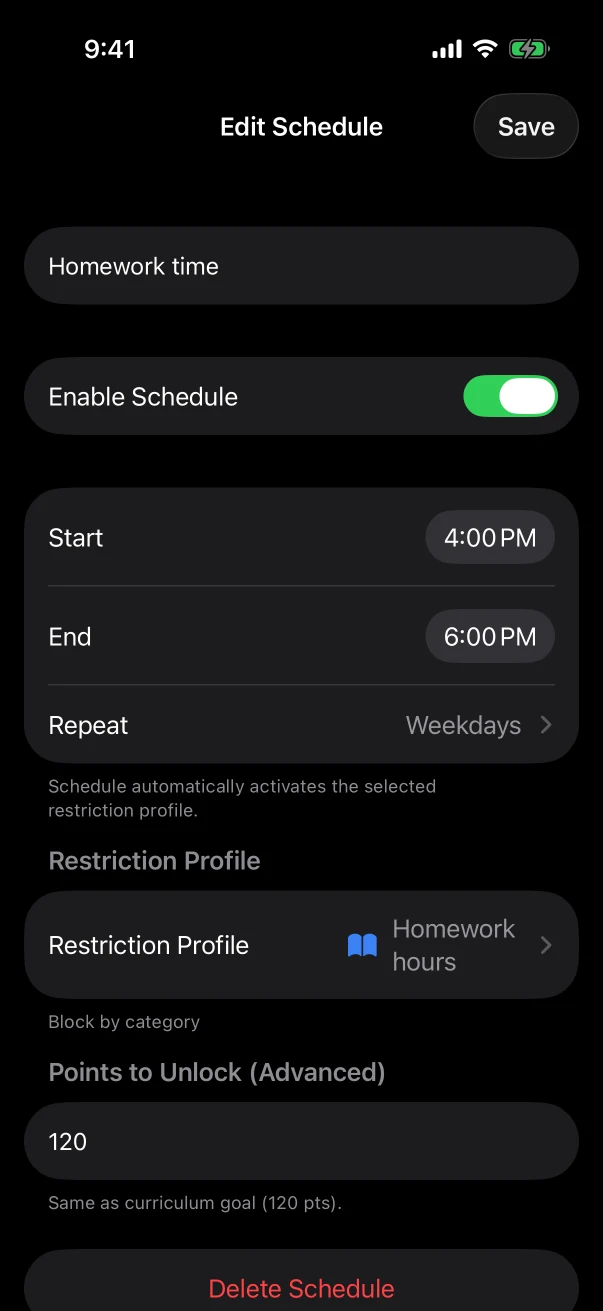
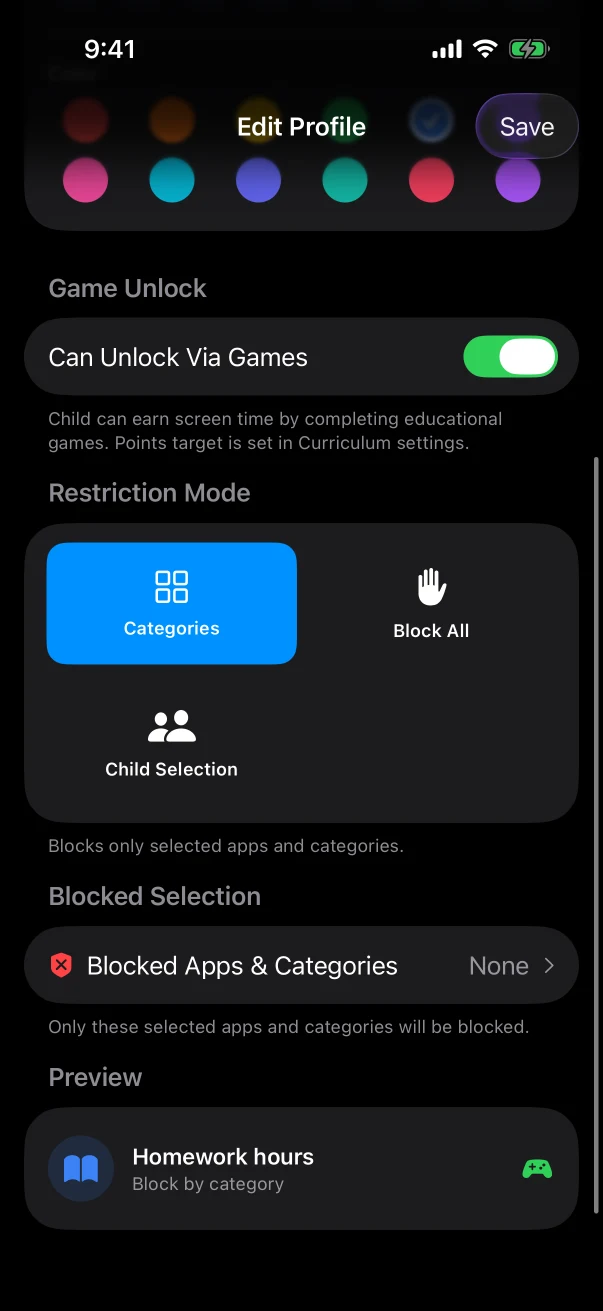
Choose when limits run and which apps they cover.
Schedule
The parent chooses days, times, a restriction profile, and an optional schedule-specific point target.
Categories
The profile shields selected app categories on the enforcing child device.
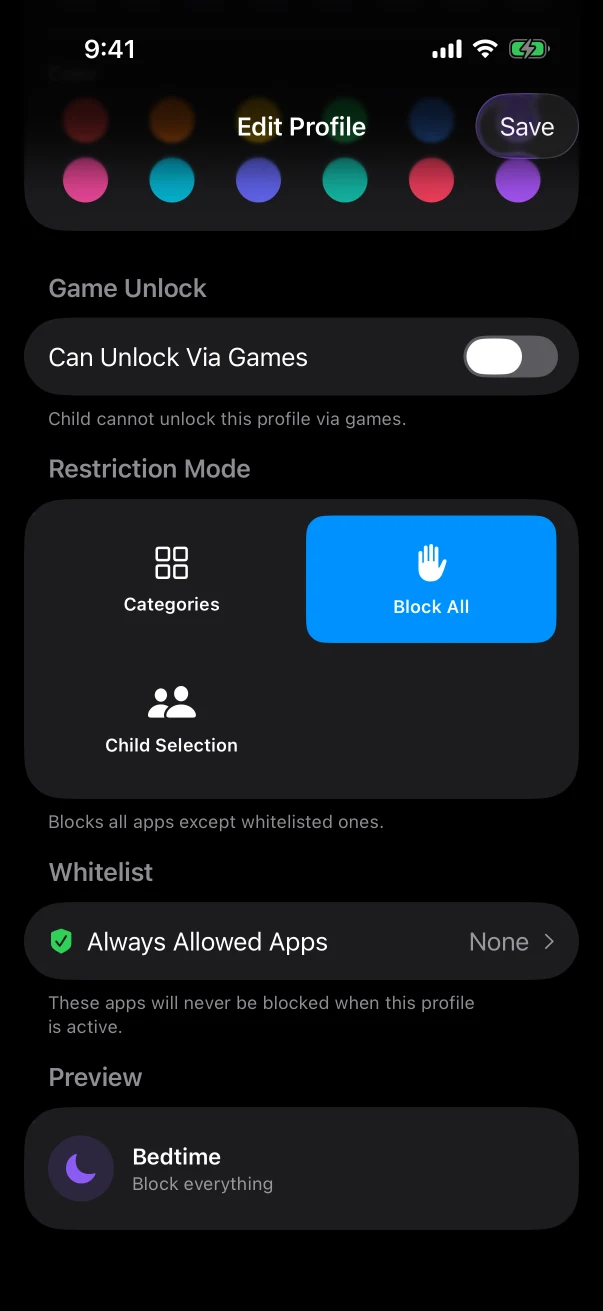
Block All
The profile shields all apps except allowed choices.
Specific apps and exceptions
Choose specific apps and exceptions on the child device that will apply the block. Another device cannot reuse that saved selection.
Overlaps and manual locks
The editor refuses schedules that overlap on the same day. If older synced data still overlaps, Braincove uses the active schedule with the earliest start time. Family Settings decides whether a manual lock ends with a schedule, at the next daily reset when no schedule is active, or only when a parent unlocks it.
Games, homework, and chores follow different checks
All three routes can add Brain Points toward an active goal, but they do not share one approval path or one global switch.
Game
A session in one of the full app's learning games earns its configured points only after the child completes the required problems or rounds, gets at least 75% correct, and remains under the parent-set earning-play limit. The earning-play count restarts for a new schedule window and at the next daily reset. Daily and parent preview sessions earn no access points; later app sessions stay playable for zero points.
Homework
The child submits images or text. A parent reviews the work and chooses whether and how many points to award. Braincove does not grade arbitrary homework.
Chore
The parent creates the chore. The child submits a photo or note. The parent confirms completion and chooses the final award. Braincove does not independently verify that the chore happened.
The child submits work; a parent decides the result
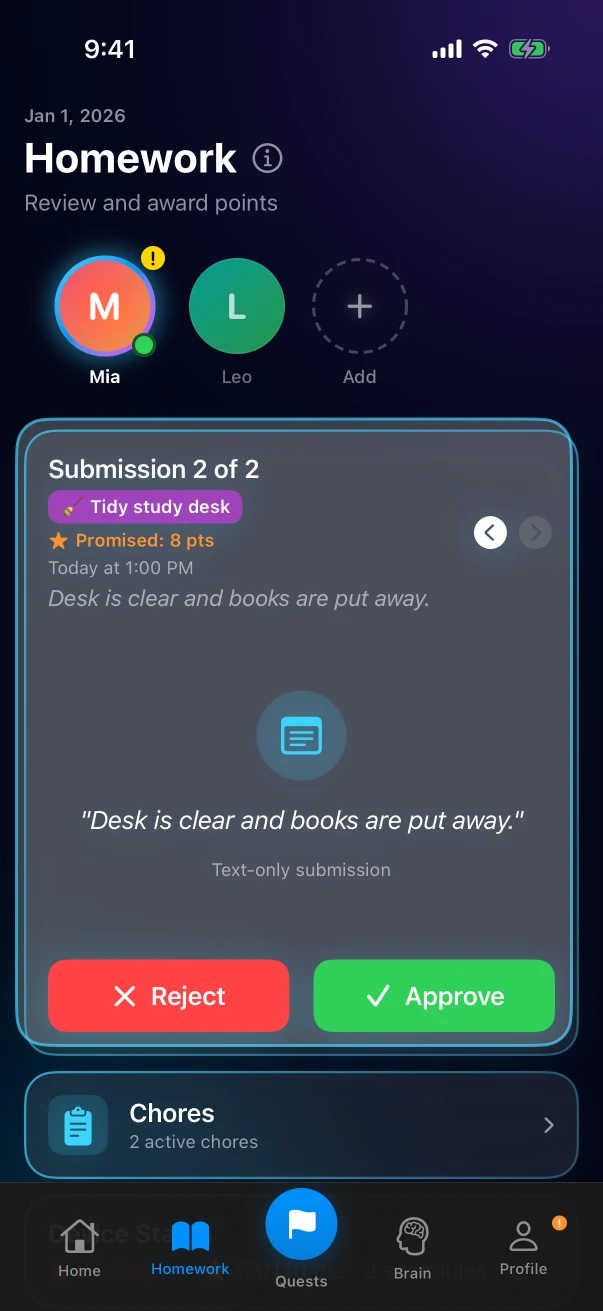
Homework and chores use a shared review flow with different starting points.
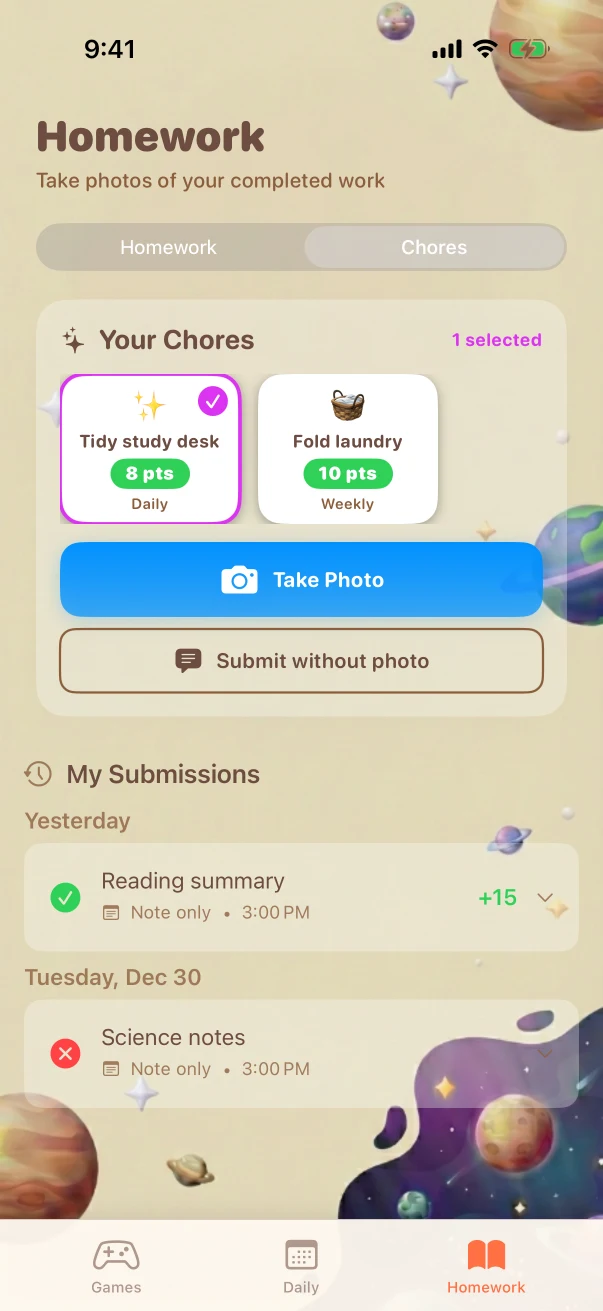
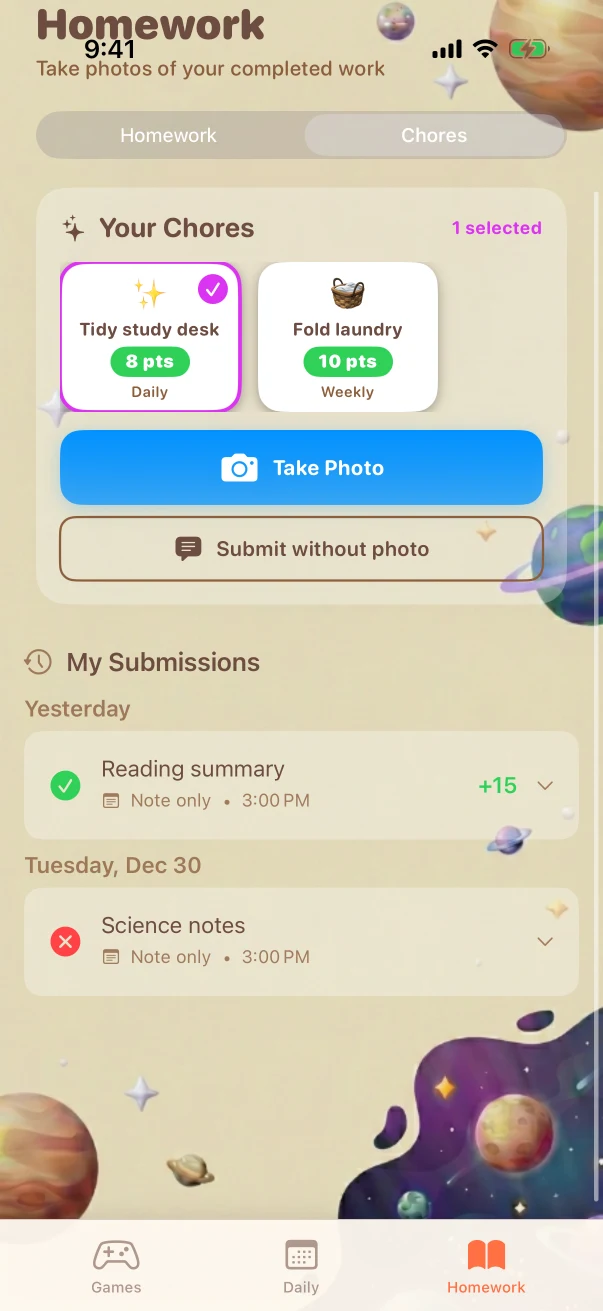
- The child opens Homework, chooses Homework or Chores, and submits homework as images or text with an optional comment, or submits the requested proof for a parent-created chore.
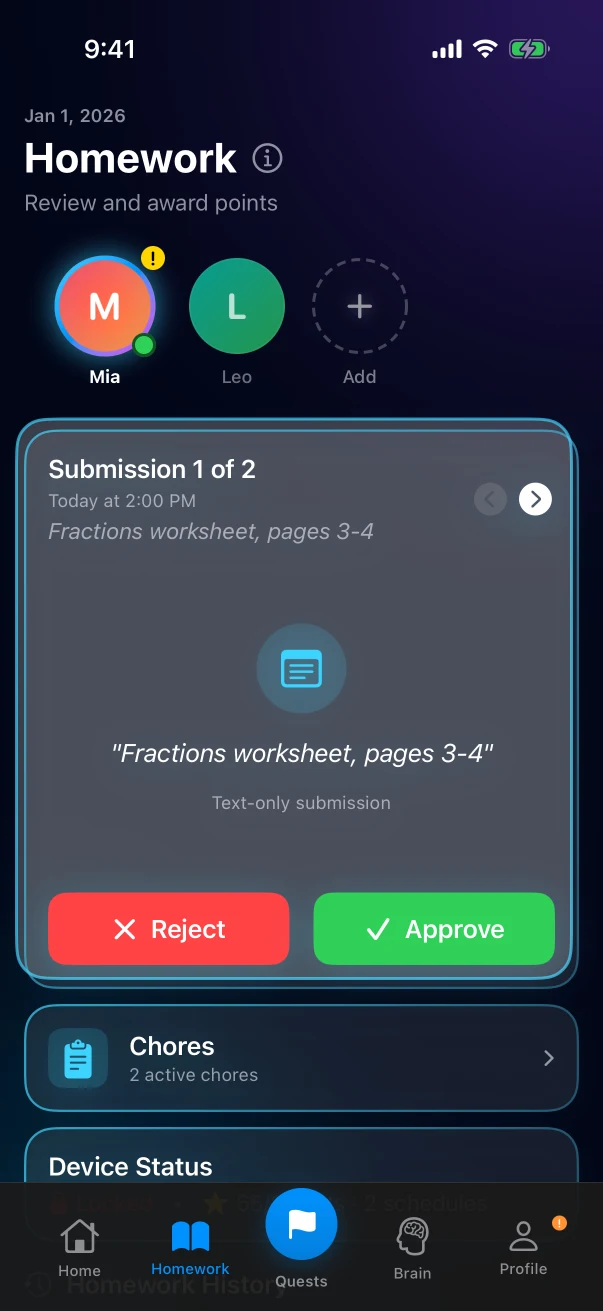
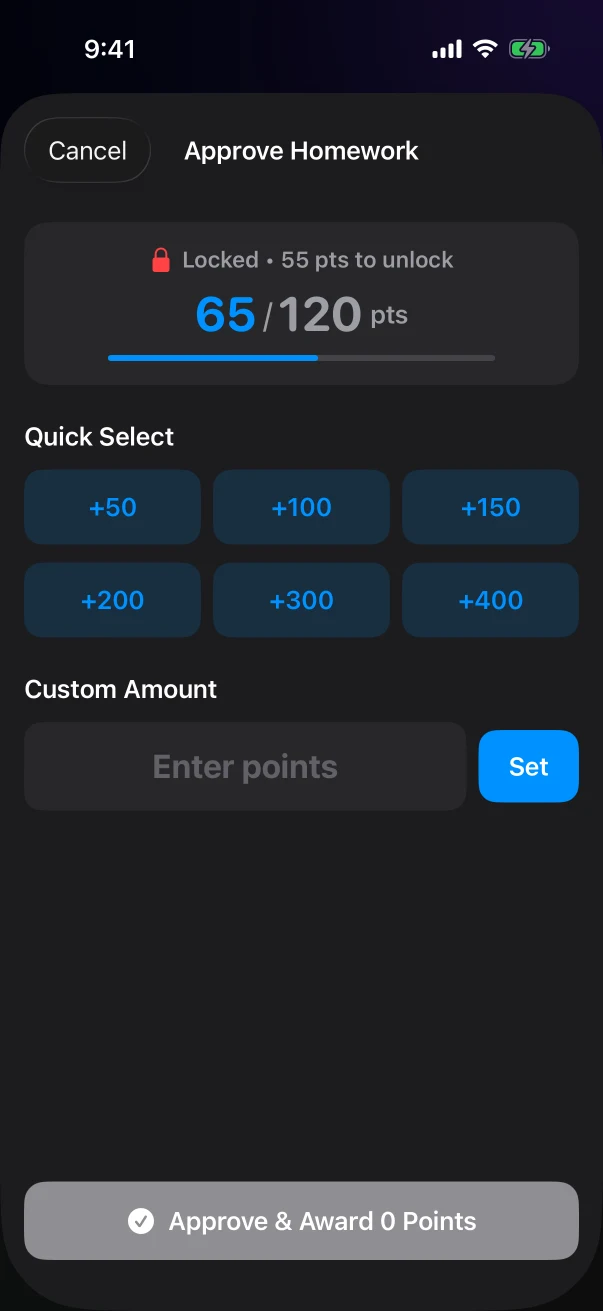
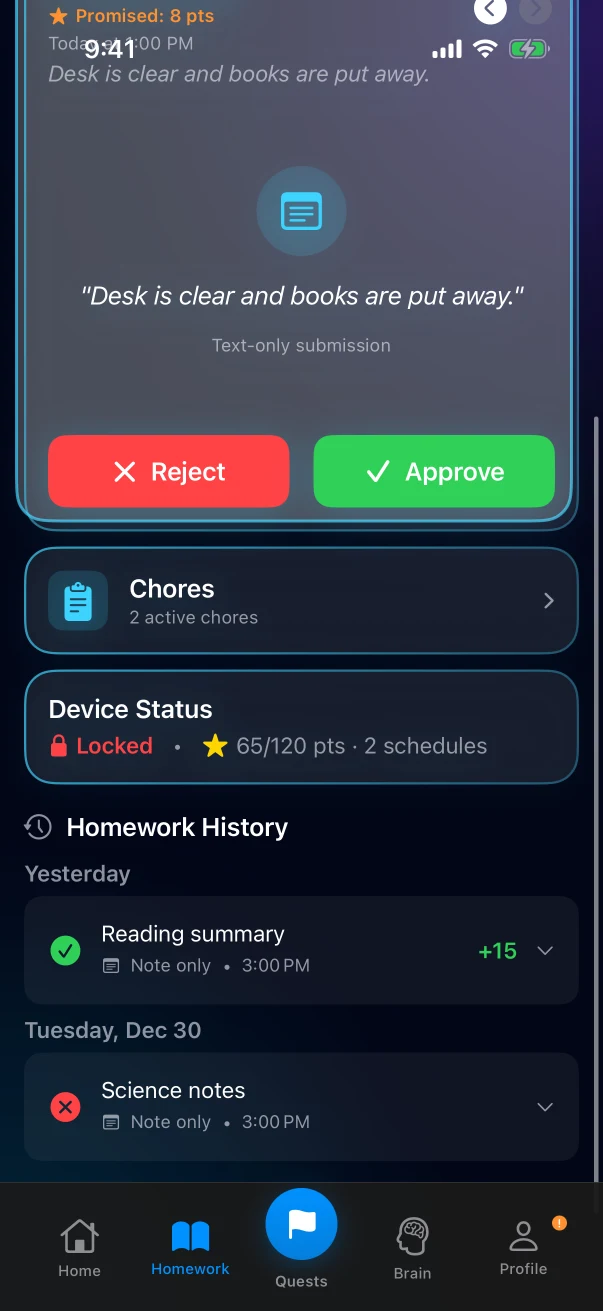
- The parent selects the child, opens the review queue, inspects the submission, and awards a positive point amount or rejects it with an optional reason.
- The child sees the reviewed result, and the parent can see earlier decisions in history.
What parents set and what children see
Each parent control below is paired with what the selected child sees. The parent sets the restriction and game rules; the child device shows the new state after receiving the change.
Restriction and schedule state
Parent: choose the active profile, schedule, goal, and manual action. Child: see the current lock state and points still needed after the child device receives the change.
Game availability and earning rules
Parent: choose available games, session size, point reward, and maximum point-earning plays. Child: see available game cards; later play may remain available for zero access points after the cap.
Homework and chore decisions
Parent: inspect, approve with points, or reject submitted work. Child: see the pending item and its reviewed result.
Separate game progress
Parent and child views keep progress specific to each game rather than assigning one Braincove level to the child.
A practical starting point, with the parent in control
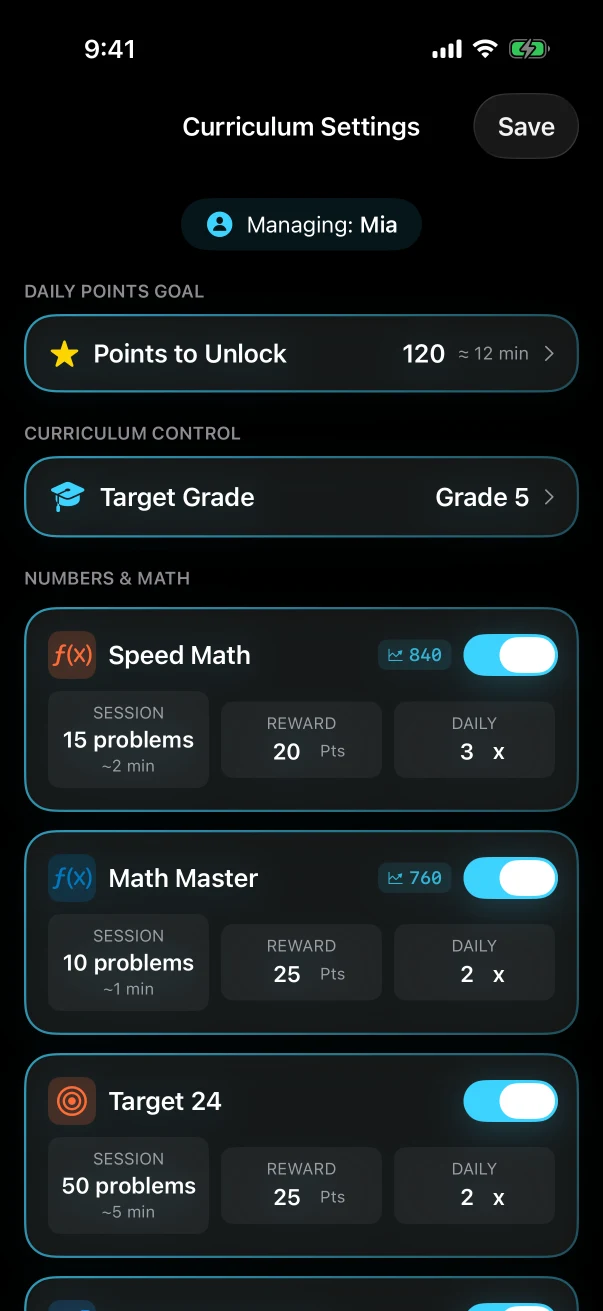
Braincove supplies starting settings, while parents can change the point goal, starting grade, and each game's session and earning rules for their child. Braincove does not claim that it always knows the best setting.
Base point goal
Used when the active schedule has no separate goal.
Target grade
Sets the starting grade for a game with no history. It is not a direct edit of that game's later level or Elo.
Settings for each game
The parent can change availability, problems per session, points for an eligible session, and the maximum number of point-earning plays. The play count restarts for a new schedule window and at the next daily reset.
Practice after the cap
The game may remain available, but later sessions add zero access points after the earning cap.
The child menu keeps the next action visible
See access, points needed, games, homework, and chores.
Games
Shows the current lock state, points still needed toward the displayed goal, and game cards the parent made available.
Daily
Opens the six online Daily games. Daily stays separate and does not add access points or change app levels.
Homework and Chores
Lets the child submit homework, open the nested Chores view, and see reviewed results.
Every game keeps its own progress
One child does not have one Braincove level. Each game keeps a separate current difficulty target.
Illustrative levels, not a live child profile
- MathMaster
- Level 31
- MemoryGrid
- Level 18
- Wordsmith
- Level 12
Level, grade band, and Elo are different
These terms locate difficulty in one game. They do not label the whole child.
Game level
One game's current difficulty target.
Grade band
For curriculum games, the school-content range. For memory or attention games, a developmental step such as a longer sequence, more items, an extra rule, or tighter timing. It is not school placement.
Elo rating
An internal per-game estimate used to choose later difficulty. Each 20 Elo points maps to one visible level; parents may inspect the read-only number in detailed progress.
The complete 85-level path
The shared scale uses five levels for Preschool, each school grade, and each Advanced Challenge band.
- Preschool1–5
- Grade 16–10
- Grade 211–15
- Grade 316–20
- Grade 421–25
- Grade 526–30
- Grade 631–35
- Grade 736–40
- Grade 841–45
- Grade 946–50
- Grade 1051–55
- Grade 1156–60
- Grade 1261–65
- Advanced Bridge66–70
- Competition Expert71–75
- University Foundations76–80
- Olympiad / Honors Synthesis81–85
How one MathMaster challenge reaches the screen
This verified Grade 6, Level 31 example shows how MathMaster creates several possible problems and measures the mathematical work in each before choosing one near the child's current level.
- Read the child's current MathMaster level.
- Find the MathMaster problem families available at that level.
- Choose a family for the session.
- Create several possible problems using that family's rules.
- Measure the mathematical steps and structure each problem requires.
- Show one whose measured difficulty is close to the child's current MathMaster level.
Subtract 5 from both sides to get 4x = 44. Divide both sides by 4 to get x = 11. Check: 4(11) + 5 = 49.
Feedback follows the game mechanic
An answer is handled inside the game first. Different mechanics need different correction or retry behavior.
MathMaster
Marks the child's choice and the correct answer. MathMaster explanations are on by default and can be switched off; when they are on, a wrong answer opens steps for that exact problem with linked glossary help.
Target24
Keeps the attempted calculations and final value visible; the child can undo or reset and try another route through the same puzzle.
SpeedMath
Crosses out the submitted answer and briefly shows the correct result. It does not show worked steps.
FractionNavigator
With explanations on, a wrong choice opens steps for the exact fractions. Number-line and ordering tasks instead reveal the correct position or order.
PatternMaster
Marks the selected and correct answer. When an explanation is available and enabled, it can show the rule and contrast the child's choice.
MemoryGrid
Shows the correct tiles or order after submission; some lower levels allow one replay before the child answers.
ThinkLink
Marks the correct association. With explanations on, a miss opens an explanation based on the specific association shown in that round.
ShapeSnap
Marks the wrong response and reveals the correct target or answer.
ColorBlitz
Highlights the correct button and restates the active color rule and correct response.
TapAttack
Marks an ordinary miss and the correct card. In a two-rule round, the game labels a card 'Close' when one condition matched and the other did not.
Wordsmith
Marks each letter as correct place, wrong place, or absent so that evidence guides the next full-word guess.
Wordforge
Returns invalid letter-tile attempts for another try; later help can reveal a letter or the answer.
Starscribe
Fills every matching slot for a correct letter, dims a star after a miss, and reveals the word and meaning after a loss.
Later changes happen after the session
After the required rounds finish, Braincove uses that game's result and current difficulty to update only that game's performance estimate. Its visible level may move up or down, or remain unchanged. Later sessions use the updated target.
Points
A session in one of the full app's learning games can add its configured points after the child completes the required problems or rounds, gets at least 75% correct, and remains under the parent-set earning-play limit. Daily, parent preview, and later over-limit sessions add zero access points.
Sync
If the game already has everything it needs on the child device, the child can finish offline. Eligible points stay on that device and can check the already-active local unlock rule immediately. Parent reporting and other devices update after reconnection.
What the parent can inspect
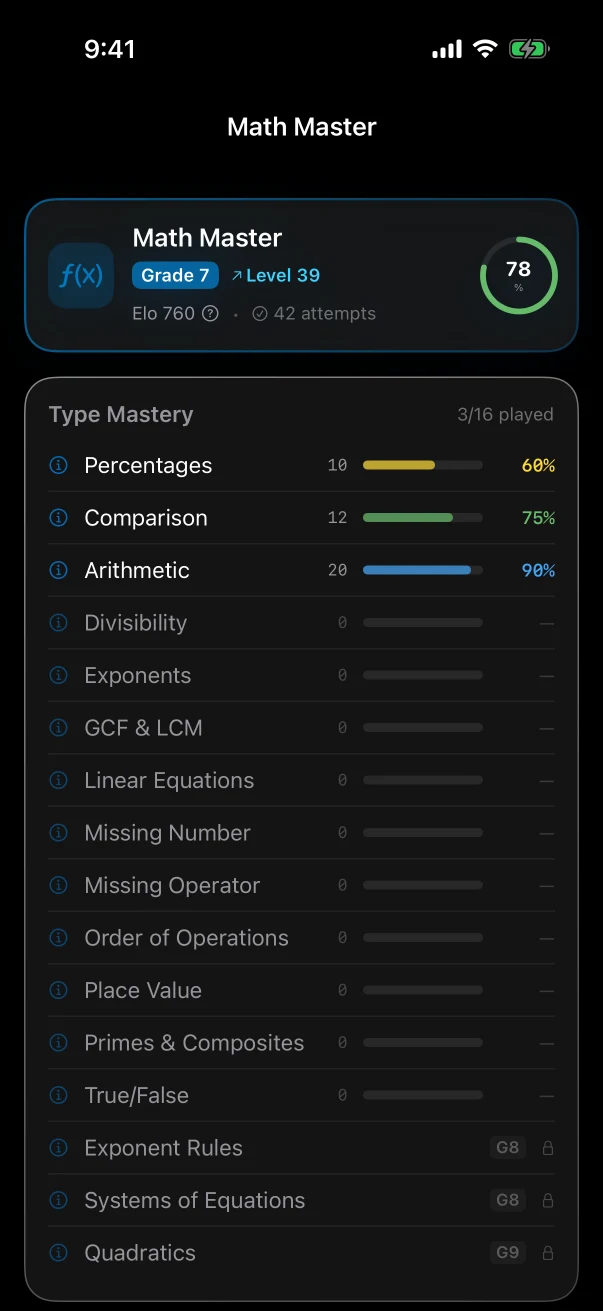
For a selected game, the parent can inspect its current grade band, level, internal Elo estimate, attempts, and accuracy. Games with challenge-family mastery can also show attempts and accuracy by family. Detail varies by game and available history. This is a selected-game detail view, not a report that compares all games.
The full app, Daily, and website guides are different
The full app and Daily include some of the same games, while the website guides describe them. They do not share app progress or access points. Website identities remain separate from the iOS family. Child and parent app profiles can participate in supported Daily family results.
Full app
The full app combines family controls with 13 launch learning games. Each game keeps separate progress, and eligible sessions can add points toward the active access goal.
Daily
Daily offers six games, each with four difficulty choices: 24 game-and-difficulty puzzles each day. It needs internet and never changes app levels, mastery, or access points.
Website game guides
Mechanics, progression, examples, and evidence about a game. A guide is not an installed game and does not record app progress.
Daily is open to several roles, with different result scopes
Anyone can play on the web without signing up first. Website visitors, email-linked web accounts, child app profiles, and parent app profiles keep different history and participate in family and public comparisons differently.
| Capability | Public web visitor | Email-linked web account | Child app profile | Parent app profile |
|---|---|---|---|---|
| Play today's Daily boards | Yes. No signup is required; the browser uses a temporary anonymous profile for play and eligible result submission. | Yes. | Yes. | Yes. |
| Submit an eligible result | Yes. A result that meets the submission rules can enter public comparisons under the anonymous browser identity. | Yes. A result that meets the submission rules can enter public comparisons under the email-linked identity. | Yes. An eligible result for the same game and difficulty can enter family and public comparisons. | Family comparisons only. A parent app result is not submitted to public rankings. |
| Keep history, bests, or streaks | This browser only. Daily history, personal bests, and streaks are stored locally. | Browser history stays local. Email linking can associate submitted website scores with the email-linked identity. | Each child keeps a streak and personal best, plus recent results for each supported game. | The app does not show a separate personal Daily history for the parent profile. |
| Enter or view family results | No. | No. A web account is not an iOS family identity. | Yes. Writes and can view supported family results. | Yes. Writes and can view supported family results. |
| Enter or view public comparisons | Eligible anonymous results can appear in aggregate public comparisons even without age confirmation. Detailed public rankings require confirmation that the person is a parent or at least 13; the summary shown after play remains separate. | Eligible results can appear in public comparisons, with available ranking detail after email confirmation. | Public submission and views are subject to the same game, difficulty, and participation rules. | Can view available public comparisons. The parent's own app result stays in family comparisons only. |
Play today's Daily boards
- Public web visitor
- Yes. No signup is required; the browser uses a temporary anonymous profile for play and eligible result submission.
- Email-linked web account
- Yes.
- Child app profile
- Yes.
- Parent app profile
- Yes.
Submit an eligible result
- Public web visitor
- Yes. A result that meets the submission rules can enter public comparisons under the anonymous browser identity.
- Email-linked web account
- Yes. A result that meets the submission rules can enter public comparisons under the email-linked identity.
- Child app profile
- Yes. An eligible result for the same game and difficulty can enter family and public comparisons.
- Parent app profile
- Family comparisons only. A parent app result is not submitted to public rankings.
Keep history, bests, or streaks
- Public web visitor
- This browser only. Daily history, personal bests, and streaks are stored locally.
- Email-linked web account
- Browser history stays local. Email linking can associate submitted website scores with the email-linked identity.
- Child app profile
- Each child keeps a streak and personal best, plus recent results for each supported game.
- Parent app profile
- The app does not show a separate personal Daily history for the parent profile.
Enter or view family results
- Public web visitor
- No.
- Email-linked web account
- No. A web account is not an iOS family identity.
- Child app profile
- Yes. Writes and can view supported family results.
- Parent app profile
- Yes. Writes and can view supported family results.
Enter or view public comparisons
- Public web visitor
- Eligible anonymous results can appear in aggregate public comparisons even without age confirmation. Detailed public rankings require confirmation that the person is a parent or at least 13; the summary shown after play remains separate.
- Email-linked web account
- Eligible results can appear in public comparisons, with available ranking detail after email confirmation.
- Child app profile
- Public submission and views are subject to the same game, difficulty, and participation rules.
- Parent app profile
- Can view available public comparisons. The parent's own app result stays in family comparisons only.
A web account is not an iOS family
Email linking can associate submitted Daily scores with a website identity.
The website account remains separate from the iOS family identity. It is not where a parent manages the family, pairs a child, configures schedules, or reviews homework and chores.
What makes Braincove different
Apple Screen Time, Khan Academy, Brilliant, Lumosity, Homey, and Braincove solve different parts of a family's controls, learning, training, and responsibility problem. The summary compares the named public flows; open the evidence notes for sources and limits.
| Representative role | What is its primary job? | What happens next? | What can the parent see or control? |
|---|---|---|---|
| Screen-time controlsRepresentative example: Apple Screen Time | Set device limits, schedules, and content or privacy restrictions. | When a limit is reached, the child may wait or ask an adult for more time. | The parent can manage supported limits and restrictions. |
| Learning and practice gamesRepresentative example: Khan Academy · Brilliant · Lumosity | Offer curriculum lessons, interactive STEM courses, or personal practice games. | The learner continues a lesson, course, or practice session inside that product. | Views differ: Khan Academy documents a parent dashboard, Brilliant an educator dashboard, and Lumosity personal progress. |
| Chore trackersRepresentative example: Homey | Organize household tasks, rewards, and configured privileges. | The child completes an assigned chore and asks for confirmation; approved work can move a configured goal. | The parent can assign work, confirm completion, and manage rewards or privileges. |
| BraincoveRepresentative example: Current Braincove app flow | Combine 13 curriculum and developmental learning games with parent-set app restrictions, approved homework, and confirmed chores. | The child can play an eligible learning game, submit homework, or complete a chore. Eligible play can add points directly; homework and chores wait for parent approval. Reaching the goal removes the Screen Time block applied by the active rule. | The parent can set restrictions, schedules, goals, grade targets, game availability, session size, rewards, and earning caps; review homework and chores; and inspect separate progress for each game. |
Screen-time controls
Representative example: Apple Screen Time
- What is its primary job?
Set device limits, schedules, and content or privacy restrictions.
- What happens next?
When a limit is reached, the child may wait or ask an adult for more time.
- What can the parent see or control?
The parent can manage supported limits and restrictions.
Learning and practice games
Representative example: Khan Academy · Brilliant · Lumosity
- What is its primary job?
Offer curriculum lessons, interactive STEM courses, or personal practice games.
- What happens next?
The learner continues a lesson, course, or practice session inside that product.
- What can the parent see or control?
Views differ: Khan Academy documents a parent dashboard, Brilliant an educator dashboard, and Lumosity personal progress.
Chore trackers
Representative example: Homey
- What is its primary job?
Organize household tasks, rewards, and configured privileges.
- What happens next?
The child completes an assigned chore and asks for confirmation; approved work can move a configured goal.
- What can the parent see or control?
The parent can assign work, confirm completion, and manage rewards or privileges.
Braincove
Representative example: Current Braincove app flow
- What is its primary job?
Combine 13 curriculum and developmental learning games with parent-set app restrictions, approved homework, and confirmed chores.
- What happens next?
The child can play an eligible learning game, submit homework, or complete a chore. Eligible play can add points directly; homework and chores wait for parent approval. Reaching the goal removes the Screen Time block applied by the active rule.
- What can the parent see or control?
The parent can set restrictions, schedules, goals, grade targets, game availability, session size, rewards, and earning caps; review homework and chores; and inspect separate progress for each game.
Evidence and limits
Braincove answers resolve to the current root product claim ledger. External answers describe the named public flows, not every feature, product, plan, or outcome in a category.
Screen-time controlsApple Screen Time+
- What is its primary job?
- Apple Screen Time is the representative first-party control surface; supported settings depend on the Apple setup.
- What happens next?
- The source documents Apple limits and requests for more time, not Braincove earning routes.
- What can the parent see or control?
- Apple documents supported controls; availability and behavior vary by device and family setup.
Learning and practice gamesKhan Academy · Brilliant · Lumosity+
- What is its primary job?
- Khan Academy, Brilliant, and Lumosity are deliberately distinct examples: curriculum lessons, interactive STEM courses, and personal practice games. No shared learning-outcome claim is being made.
- What happens next?
- The cited products keep the next activity inside their own lesson, course, or practice flow. Their formats, audiences, feedback, and access mechanics differ.
- What can the parent see or control?
- The cited sources describe a Khan Academy parent dashboard, a Brilliant educator dashboard, and Lumosity personal progress. They do not establish one common parent-control model.
Chore trackersHomey+
- What is its primary job?
- Homey is the named family chore example and documents tasks, rewards, and configurable privileges. Other chore products can combine these differently.
- What happens next?
- Homey documents assigned work, completion confirmation, and progress toward configured goals or privileges; reward handling varies.
- What can the parent see or control?
- This answer describes the named Homey flow, not every chore tracker.
BraincoveCurrent Braincove app flow+
- What is its primary job?
- Braincove includes 13 learning games across academic and developmental categories; curriculum links vary by game. The connected access, homework, and chore flow is limited to current documented behavior.
- What happens next?
- Games count only when eligible; homework and chores remain parent-reviewed routes.
- What can the parent see or control?
- Current parent views and settings support rules, schedules, goals, per-game settings, review decisions, and selected-game progress. Detail varies by game and available history.
Where the current product has limits
These limits affect setup, offline behavior, data handling, and language availability.
Screen Time setup
Braincove works within Apple authorization, Family Sharing, and device-token rules. Pairing does not replace Screen Time authorization.
Connectivity
Core practice and already-synced schedules can continue through some connection gaps. Setup, new changes, sync, uploads, reviews, Daily, leaderboards, and some content loading need internet.
Privacy
Braincove has no ads and does not sell or resell family data. On parent devices, Braincove records limited app-use measurements and crash reports with sensitive details removed; analytics are disabled on child devices. Read the current privacy policy for details.
Languages
The interface may be available in a language even when some game content is not. Current word-game content is English.
What happens during a connection gap depends on the task
Braincove combines local enforcement and practice with connected family workflows.
| Task | During a connection gap |
|---|---|
| Already-synced schedules and shields | Enforce locally through Apple Screen Time systems, including while the main app is closed. |
| Curriculum sessions with required content on the device | Can continue when the required content is already on the device. Eligible points stay on that device and can check the already-active local unlock rule immediately; reporting and other devices update after reconnection. |
| New parent lock, unlock, pause, schedule, profile, or setting change | Waits until the parent and child devices can sync. An instant remote lock cannot reach an offline child. |
| Homework or chore submission and parent review | The cross-device workflow requires connectivity. |
| Daily, leaderboards, and web-account features | Require connectivity. |
Plain-English system glossary
Each term states what it means, what it is not, and one concrete example. The final link returns to the guide section that uses it.
- Family
The shared Braincove group containing parent or guardian accounts and child profiles.
Not: Not a Daily web account or a collection of several families.
Example: A parent can select either of two child profiles inside one family.
Read: One family can include more than one parent and child- Co-parent
Another adult in the same Braincove family who uses their own parent device.
Not: Not a temporary guest or linked web account.
Example: Two parents see supported family settings after those settings sync.
Read: One family can include more than one parent and child- Pairing code
A temporary six-character family code, valid for 10 minutes, that lets a signed-in parent join the family or a child device choose and pair with a child profile.
Not: Not Screen Time authorization.
Example: The parent shows the same current code to a joining parent or to the child device being paired.
Read: Parent devices, child devices, and setup- Child profile
One child's separate record for device state, points, homework submissions, chore submissions, parent decisions, and progress.
Not: Not merely the row selected on the parent dashboard.
Example: Two siblings can have different points and game levels.
Read: One family can include more than one parent and child- Restriction profile
A saved rule describing which apps or categories are shielded.
Not: Not the schedule that decides when the rule applies.
Example: A bedtime schedule can use a Block All profile.
Read: Schedules decide when; restriction profiles decide what- Restriction scope
The part of a profile that defines what its shield covers.
Not: Not the schedule or point goal.
Example: The scope can be Categories or Block All with allowed exceptions.
Read: Schedules decide when; restriction profiles decide what- Categories
A mode that shields selected app categories on the enforcing child device.
Not: Not an automatic block on every app.
Example: The parent selects which categories the profile covers.
Read: Schedules decide when; restriction profiles decide what- Block All
A mode that shields all apps except allowed choices.
Not: Not a device shutdown and not a block on allowed exceptions.
Example: The profile leaves only selected allowed apps available.
Read: Schedules decide when; restriction profiles decide what- Device-bound choice
A specific Apple app or exception saved only for the iPhone where it was selected.
Not: Not a portable list another device can enforce unchanged.
Example: Choose the restricted app on the child iPhone where the block will apply; another device cannot reuse that selection.
Read: Schedules decide when; restriction profiles decide what- Confirmed state
A state the child device has acknowledged as applied.
Not: Not merely proof that the parent tapped a control.
Example: The dashboard shows confirmation after the child device responds.
Read: Confirmed on the child device or waiting for it- Pending state
A parent change still waiting for confirmation from the child device.
Not: Not proof that the change already applies or that it failed.
Example: Lock Now remains pending while the child device is offline.
Read: Confirmed on the child device or waiting for it- Remote command
A network-assisted parent request to lock, unlock, or pause a child device.
Not: Not instant when the child device is offline.
Example: The parent taps Unlock and the child receives it after reconnecting.
Read: Confirmed on the child device or waiting for it- Connection gap
A temporary period when a device cannot reach the Braincove service.
Not: Not cancellation of rules already delivered to that device.
Example: A local game continues while its result waits to sync.
Read: What happens during a connection gap depends on the task- Parent review
A parent's inspection and decision on submitted homework or a chore.
Not: Not automatic Braincove grading.
Example: The parent reads the work and awards points or rejects it.
Read: The child submits work; a parent decides the result- Homework submission
Images or text the child sends for a parent to review.
Not: Not work uploaded by the parent or graded automatically.
Example: The child sends two photos and an optional comment.
Read: The child submits work; a parent decides the result- Chore submission
A photo or note the child sends for a parent-created chore.
Not: Not independent proof that the chore happened.
Example: The child sends the requested proof and the parent decides the result.
Read: The child submits work; a parent decides the result- Parent override
A supported value or action a parent changes because they know their child.
Not: Not a way around Apple protection or app limits.
Example: The parent changes session size or the point-earning play cap.
Read: A practical starting point, with the parent in control- Access goal
The point threshold attached to the restriction rule or schedule active now.
Not: Not a duration or bundle of minutes.
Example: When the displayed total reaches the schedule's goal, the child device clears the shield applied by that schedule.
Read: From an active rule to access- Brain Points
Units added toward the active access goal.
Not: Not minutes, money, or stored credit.
Example: An approved homework item adds points to the same daily total as eligible game practice.
Read: From an active rule to access- Restricted app
An app currently covered by the active Screen Time rule.
Not: Not every app installed on the device.
Example: A selected entertainment app stays shielded until the active rule clears.
Read: Schedules decide when; restriction profiles decide what- Schedule
Parent-set days and times when a restriction profile applies.
Not: Not the profile that defines which apps are covered.
Example: A school-night schedule starts at its configured local time.
Read: Schedules decide when; restriction profiles decide what- Eligible practice
A session in one of the full app's learning games in which the child completes the required problems or rounds, reaches at least 75% accuracy, and remains under the parent-set earning-play limit.
Not: Not every game launch or Daily play.
Example: Daily, parent preview, and later over-limit sessions stay separate and add zero access points.
Read: Games, homework, and chores follow different checks- Game level
One game's current difficulty target.
Not: Not a generated challenge or global child score.
Example: MathMaster can be Level 31 while MemoryGrid is Level 18.
Read: Level, grade band, and Elo are different- Grade band
The school-content range in a curriculum game, or the developmental step in a memory or attention game.
Not: Not school placement.
Example: A math band can change its topic; a memory band can add sequence length, more items, or another rule.
Read: Level, grade band, and Elo are different- Elo rating
The internal per-game performance estimate behind a visible level.
Not: Not intelligence, school placement, or a family-wide score.
Example: A completed MathMaster session can update MathMaster's estimate without changing Wordsmith.
Read: Level, grade band, and Elo are different- Advanced Challenge Track
Levels 66–85 after the Grade 12 band.
Not: Not Grades 13–16.
Example: Level 71 belongs to Competition Expert.
Read: The complete 85-level path- Challenge family
A kind of problem or task within one game.
Not: Not one individual generated or selected challenge.
Example: Linear equations are one MathMaster family.
Read: How one MathMaster challenge reaches the screen- Format
How the child responds to a challenge.
Not: Not a difficulty rating.
Example: A response can use choices, typing, dragging, or tapping.
Read: How one MathMaster challenge reaches the screen- Difficulty stage
A family-specific step that changes rules, form, memory load, or reasoning.
Not: Not the child's whole game level.
Example: A later stage can require more reasoning steps without only increasing number size.
Read: How one MathMaster challenge reaches the screen- Generator
Code that builds a challenge from a game's rules and content.
Not: It does not generate the child's level.
Example: MathMaster builds candidate equation problems for the target level.
Read: How one MathMaster challenge reaches the screen- Difficulty matching
Building or selecting a challenge near one game's current target.
Not: Not a promise that every session changes the level.
Example: MathMaster can compare several generated problems and choose one close to Level 31.
Read: How one MathMaster challenge reaches the screen- Session
The required problems or rounds completed during one play period.
Not: Not one answer.
Example: Points eligibility is checked after the required session work is complete.
Read: Later changes happen after the session- Explanation
Teaching attached to a specific result or problem.
Not: Not one universal response shared by all games.
Example: MathMaster can show steps for the exact equation that was missed.
Read: Feedback follows the game mechanic- Glossary help
Linked definitions and examples for terms used in a game explanation.
Not: Not a universal tutoring system.
Example: A MathMaster explanation can link a term used in its solution steps.
Read: Feedback follows the game mechanic- Daily
Six online puzzle games available on the web and in both app roles.
Not: It does not change full-app levels or access points.
Example: A public web visitor can play today's Daily boards without signing up first.
Read: Daily is open to several roles, with different result scopes- Local practice
App play that can continue when required content is already on the device.
Not: Not a claim that every Braincove feature works offline.
Example: A supported generator builds the next local challenge while sync waits.
Read: What happens during a connection gap depends on the task- Sync
Sending or receiving family, configuration, progress, review, or result data through the service.
Not: Not local Screen Time enforcement itself.
Example: A pending parent command becomes confirmed after the child device receives and acknowledges it.
Read: What happens during a connection gap depends on the task
Family
The shared Braincove group containing parent or guardian accounts and child profiles.
Not: Not a Daily web account or a collection of several families.
Example: A parent can select either of two child profiles inside one family.
Read: One family can include more than one parent and childCo-parent
Another adult in the same Braincove family who uses their own parent device.
Not: Not a temporary guest or linked web account.
Example: Two parents see supported family settings after those settings sync.
Read: One family can include more than one parent and childPairing code
A temporary six-character family code, valid for 10 minutes, that lets a signed-in parent join the family or a child device choose and pair with a child profile.
Not: Not Screen Time authorization.
Example: The parent shows the same current code to a joining parent or to the child device being paired.
Read: Parent devices, child devices, and setupChild profile
One child's separate record for device state, points, homework submissions, chore submissions, parent decisions, and progress.
Not: Not merely the row selected on the parent dashboard.
Example: Two siblings can have different points and game levels.
Read: One family can include more than one parent and childRestriction profile
A saved rule describing which apps or categories are shielded.
Not: Not the schedule that decides when the rule applies.
Example: A bedtime schedule can use a Block All profile.
Read: Schedules decide when; restriction profiles decide whatRestriction scope
The part of a profile that defines what its shield covers.
Not: Not the schedule or point goal.
Example: The scope can be Categories or Block All with allowed exceptions.
Read: Schedules decide when; restriction profiles decide whatCategories
A mode that shields selected app categories on the enforcing child device.
Not: Not an automatic block on every app.
Example: The parent selects which categories the profile covers.
Read: Schedules decide when; restriction profiles decide whatBlock All
A mode that shields all apps except allowed choices.
Not: Not a device shutdown and not a block on allowed exceptions.
Example: The profile leaves only selected allowed apps available.
Read: Schedules decide when; restriction profiles decide whatDevice-bound choice
A specific Apple app or exception saved only for the iPhone where it was selected.
Not: Not a portable list another device can enforce unchanged.
Example: Choose the restricted app on the child iPhone where the block will apply; another device cannot reuse that selection.
Read: Schedules decide when; restriction profiles decide whatConfirmed state
A state the child device has acknowledged as applied.
Not: Not merely proof that the parent tapped a control.
Example: The dashboard shows confirmation after the child device responds.
Read: Confirmed on the child device or waiting for itPending state
A parent change still waiting for confirmation from the child device.
Not: Not proof that the change already applies or that it failed.
Example: Lock Now remains pending while the child device is offline.
Read: Confirmed on the child device or waiting for itRemote command
A network-assisted parent request to lock, unlock, or pause a child device.
Not: Not instant when the child device is offline.
Example: The parent taps Unlock and the child receives it after reconnecting.
Read: Confirmed on the child device or waiting for itConnection gap
A temporary period when a device cannot reach the Braincove service.
Not: Not cancellation of rules already delivered to that device.
Example: A local game continues while its result waits to sync.
Read: What happens during a connection gap depends on the taskParent review
A parent's inspection and decision on submitted homework or a chore.
Not: Not automatic Braincove grading.
Example: The parent reads the work and awards points or rejects it.
Read: The child submits work; a parent decides the resultHomework submission
Images or text the child sends for a parent to review.
Not: Not work uploaded by the parent or graded automatically.
Example: The child sends two photos and an optional comment.
Read: The child submits work; a parent decides the resultChore submission
A photo or note the child sends for a parent-created chore.
Not: Not independent proof that the chore happened.
Example: The child sends the requested proof and the parent decides the result.
Read: The child submits work; a parent decides the resultParent override
A supported value or action a parent changes because they know their child.
Not: Not a way around Apple protection or app limits.
Example: The parent changes session size or the point-earning play cap.
Read: A practical starting point, with the parent in controlAccess goal
The point threshold attached to the restriction rule or schedule active now.
Not: Not a duration or bundle of minutes.
Example: When the displayed total reaches the schedule's goal, the child device clears the shield applied by that schedule.
Read: From an active rule to accessBrain Points
Units added toward the active access goal.
Not: Not minutes, money, or stored credit.
Example: An approved homework item adds points to the same daily total as eligible game practice.
Read: From an active rule to accessRestricted app
An app currently covered by the active Screen Time rule.
Not: Not every app installed on the device.
Example: A selected entertainment app stays shielded until the active rule clears.
Read: Schedules decide when; restriction profiles decide whatSchedule
Parent-set days and times when a restriction profile applies.
Not: Not the profile that defines which apps are covered.
Example: A school-night schedule starts at its configured local time.
Read: Schedules decide when; restriction profiles decide whatEligible practice
A session in one of the full app's learning games in which the child completes the required problems or rounds, reaches at least 75% accuracy, and remains under the parent-set earning-play limit.
Not: Not every game launch or Daily play.
Example: Daily, parent preview, and later over-limit sessions stay separate and add zero access points.
Read: Games, homework, and chores follow different checksGame level
One game's current difficulty target.
Not: Not a generated challenge or global child score.
Example: MathMaster can be Level 31 while MemoryGrid is Level 18.
Read: Level, grade band, and Elo are differentGrade band
The school-content range in a curriculum game, or the developmental step in a memory or attention game.
Not: Not school placement.
Example: A math band can change its topic; a memory band can add sequence length, more items, or another rule.
Read: Level, grade band, and Elo are differentElo rating
The internal per-game performance estimate behind a visible level.
Not: Not intelligence, school placement, or a family-wide score.
Example: A completed MathMaster session can update MathMaster's estimate without changing Wordsmith.
Read: Level, grade band, and Elo are differentAdvanced Challenge Track
Levels 66–85 after the Grade 12 band.
Not: Not Grades 13–16.
Example: Level 71 belongs to Competition Expert.
Read: The complete 85-level pathChallenge family
A kind of problem or task within one game.
Not: Not one individual generated or selected challenge.
Example: Linear equations are one MathMaster family.
Read: How one MathMaster challenge reaches the screenFormat
How the child responds to a challenge.
Not: Not a difficulty rating.
Example: A response can use choices, typing, dragging, or tapping.
Read: How one MathMaster challenge reaches the screenDifficulty stage
A family-specific step that changes rules, form, memory load, or reasoning.
Not: Not the child's whole game level.
Example: A later stage can require more reasoning steps without only increasing number size.
Read: How one MathMaster challenge reaches the screenGenerator
Code that builds a challenge from a game's rules and content.
Not: It does not generate the child's level.
Example: MathMaster builds candidate equation problems for the target level.
Read: How one MathMaster challenge reaches the screenDifficulty matching
Building or selecting a challenge near one game's current target.
Not: Not a promise that every session changes the level.
Example: MathMaster can compare several generated problems and choose one close to Level 31.
Read: How one MathMaster challenge reaches the screenSession
The required problems or rounds completed during one play period.
Not: Not one answer.
Example: Points eligibility is checked after the required session work is complete.
Read: Later changes happen after the sessionExplanation
Teaching attached to a specific result or problem.
Not: Not one universal response shared by all games.
Example: MathMaster can show steps for the exact equation that was missed.
Read: Feedback follows the game mechanicGlossary help
Linked definitions and examples for terms used in a game explanation.
Not: Not a universal tutoring system.
Example: A MathMaster explanation can link a term used in its solution steps.
Read: Feedback follows the game mechanicDaily
Six online puzzle games available on the web and in both app roles.
Not: It does not change full-app levels or access points.
Example: A public web visitor can play today's Daily boards without signing up first.
Read: Daily is open to several roles, with different result scopesLocal practice
App play that can continue when required content is already on the device.
Not: Not a claim that every Braincove feature works offline.
Example: A supported generator builds the next local challenge while sync waits.
Read: What happens during a connection gap depends on the taskSync
Sending or receiving family, configuration, progress, review, or result data through the service.
Not: Not local Screen Time enforcement itself.
Example: A pending parent command becomes confirmed after the child device receives and acknowledges it.
Read: What happens during a connection gap depends on the taskPractical questions
Direct answers to the decisions families usually need to make next.
Do all games use every one of the 85 levels?
They share the 85-level scale, but individual games may start later or use different content within it.
Is a game level my child's school grade?
No. A level is one game's current difficulty target. A grade band locates curriculum or developmental content where that mapping applies.
What happens after a wrong answer?
It depends on the game. MathMaster can show problem-specific steps; MemoryGrid reveals the correct pattern; Target24 preserves the attempted route; tap and word games use their own correction or retry behavior.
Does Daily change app progress or unlock apps?
No. Daily is six online puzzle games available on the web and in both app roles. It does not change app levels, mastery, or access points.
Does Braincove need internet?
Setup, sync, uploads, configuration changes, Daily, leaderboards, and some content loading do. Core app practice can continue through a temporary gap when the required content is already local, and already-delivered schedules can enforce locally. New parent commands wait for reconnection.
Who approves homework and chores?
A parent does. Braincove does not grade arbitrary homework or independently verify a completed chore.
Does pairing protect the child device?
No. Pairing authenticates the child to the family. Apple Screen Time authorization is a separate required step. Apple Family authorization is recommended; Individual authorization can be revoked by the device user.
What happens when the access goal is reached?
Braincove clears the shield applied by the active rule without spending points. The resulting unlock normally remains active through the child device's local day; expiry and the later daily reset do not add a shield. A parent action or a rule or schedule applied later can block again.
Read the full access lifecycleCan every game session earn points?
No. In a session in one of the full app's learning games, the child must complete the required problems or rounds, reach at least 75% accuracy, and remain under the parent-set earning-play limit. Daily and parent preview sessions add zero access points.
Get the launch email.
The family app for iPhone is not available yet. Join the launch list, browse its 13 games, or play Daily now in your browser.